How to Install Java and Configure JAVA_HOME
Introduction
Java remains one of the most widely used programming languages for backend services, enterprise systems, and Android applications. Before you can compile or run any Java code, you must install a Java Development Kit (JDK) and configure your environment so that tools, build systems, and IDEs can find it reliably.
Two steps are critical in this process: installing a suitable JDK version and setting the JAVA_HOME environment variable. JAVA_HOME acts as a central reference to your Java installation and is used by many tools such as Maven, Gradle, application servers, and IDEs.
This tutorial walks you through installing Java and configuring JAVA_HOME in a careful, repeatable way. The goal is to avoid common issues like “java is not recognized” or tools silently using a different JDK than you expect.
Who This Guide Is For
This guide is aimed at developers who are setting up a Java environment on their own machine, including:
- Beginners writing their first Java program
- Developers joining a Java project who need a reliable local setup
- Engineers configuring build tools that depend on JAVA_HOME
You do not need prior Java experience, but you should be comfortable performing basic operations in your operating system settings and using a terminal or command prompt.
Prerequisites
Before following the steps, ensure that you have:
- A supported operating system such as Windows, macOS, or Linux
- Administrator rights to install software and edit environment variables
- An internet connection to download the JDK from an official source
If you previously installed Java, this guide will still help you verify which version is active and how to point tools to the correct installation.
Step-by-Step Instructions
Step 1: Choose a JDK Distribution
Several vendors provide JDK builds, including Oracle, Eclipse Temurin, and others. For most development scenarios, a stable Long-Term Support (LTS) version such as Java 17 or 21 is a good choice. Select a distribution that matches your operating system and CPU architecture.
When in doubt, pick an LTS release from a reputable vendor with clear security update policies. Avoid unofficial builds from untrusted sources.
Step 2: Download and Install the JDK
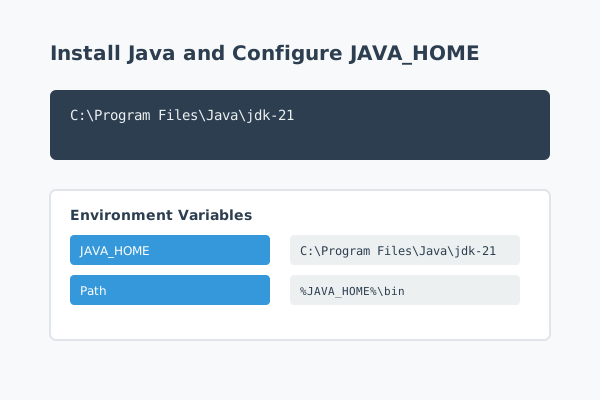
Download the installer (for Windows and macOS) or compressed archive (for Linux) from the vendor’s site. On Windows, run the installer and accept the license agreement. Take note of the installation path, often similar to:
C:\Program Files\Java\jdk-21
On macOS and Linux, follow the vendor’s instructions. Package managers such as Homebrew or apt can simplify installation, but make sure you know where the JDK is installed so you can reference it later.
Step 3: Verify the Java Installation
Open a new terminal or command prompt and run:
java -version
javac -version
If both commands display version numbers without errors, Java is installed and visible in your PATH. If they fail, your PATH may not include the JDK’s bin directory, which you can correct using the JAVA_HOME configuration in the next step.
Step 4: Configure the JAVA_HOME Environment Variable
JAVA_HOME should point to the root directory of your JDK installation, not the bin subdirectory. For example:
C:\Program Files\Java\jdk-21
On Windows, open the system environment variable settings, create a new variable named JAVA_HOME, and set its value to the JDK directory. Then edit the Path variable and add:
%JAVA_HOME%\bin
On macOS or Linux, you can add lines similar to the following to your shell profile file:
export JAVA_HOME=/usr/lib/jvm/jdk-21
export PATH="$JAVA_HOME/bin:$PATH"
After saving, reload your terminal or restart your session so the changes take effect.
Step 5: Confirm Tools Use the Correct JDK
Many build tools and IDEs read JAVA_HOME when they start. After configuring the variable, close and reopen your tools. In your terminal, run:
echo %JAVA_HOME%
on Windows or:
echo $JAVA_HOME
on Unix-like systems. Ensure the path matches the JDK you intend to use.
Common Mistakes and How to Avoid Them
A few recurring problems can make Java installation frustrating. Being aware of them helps you avoid wasted time.
First, many developers accidentally point JAVA_HOME to the bin folder instead of the JDK root. Tools expect JAVA_HOME to reference the top-level directory, so always exclude the bin segment. If Maven or Gradle reports that it cannot find tools.jar or the compiler, this is a likely cause.
Second, mixing multiple JDK versions without a clear strategy can lead to subtle issues. Ensure that JAVA_HOME, your IDE settings, and any version managers all point to the same JDK when working on a project. Document the required Java version in your project so teammates configure their systems consistently.
Third, remember that environment variable changes usually affect only new terminals and processes. If you change JAVA_HOME while tools are open, restart those tools to pick up the new value.
Practical Example or Use Case
Imagine you join a Java project that requires Java 17. The repository includes a build script that fails with an error stating that Java 11 was detected. By running java -version, you confirm that your default Java is indeed version 11, installed earlier for another project.
Following this guide, you install JDK 17 to a new directory and update JAVA_HOME to point to that location. After adjusting your PATH and restarting your terminal, java -version shows Java 17. When you rerun the build script, it completes successfully because both Java and the build tool now use the correct JDK.
This simple example illustrates how a correctly configured JAVA_HOME can resolve version mismatches quickly and predictably.
Summary
Installing Java and configuring JAVA_HOME are foundational tasks for any Java developer. By choosing a suitable JDK, installing it from a trusted source, and setting JAVA_HOME to the correct directory, you ensure that your tools and builds behave consistently.
Whenever you upgrade Java or switch projects, revisit your JAVA_HOME configuration to verify it still matches the required version. Treat this variable as the single source of truth for where Java lives on your system. With a solid installation in place, you are ready to compile, run, and deploy Java applications with confidence.