How to Compile and Run Java from the Command Line
Introduction
While modern IDEs provide buttons to run and debug Java code, understanding how to compile and run programs from the command line is an essential skill. It helps you debug environment issues, work on remote servers, and better understand what your tools are doing behind the scenes.
In this tutorial, you will learn how to go from a plain text Java file to a running program using only the javac compiler and the java launcher. You will also see how the compiled .class files relate to your source code and how the classpath influences what Java can run.
Who This Guide Is For
This guide is ideal for:
- Beginners who want to understand the basics of the Java toolchain
- Developers who usually rely on IDEs and want to gain confidence with the command line
- Anyone preparing for interviews or exams where manual compilation is required
You should already have Java installed and the java and javac commands available in your terminal.
Prerequisites
Before continuing, verify your setup:
- Run
java -versionto confirm the Java runtime is available - Run
javac -versionto confirm the Java compiler is installed - Have a folder where you can create test files, such as a
java-cli-demodirectory
Step-by-Step Instructions
Step 1: Create a Simple Java Source File
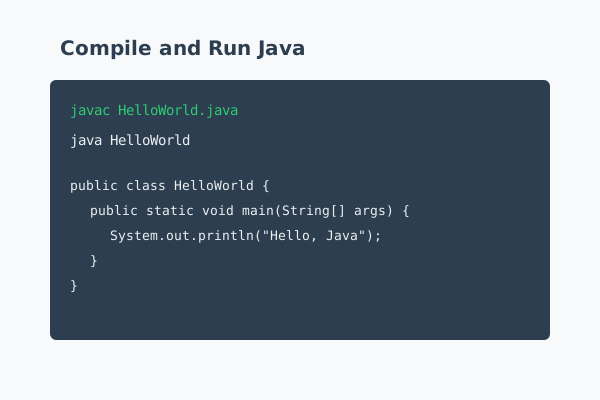
In your chosen folder, create a file named HelloWorld.java with the following content:
public class HelloWorld {
    public static void main(String[] args) {
        System.out.println("Hello from the command line");
    }
}
The class name must match the file name exactly (including case). The main method signature is what the Java runtime looks for when starting an application.
Step 2: Compile the Source Code
Open a terminal in the directory containing HelloWorld.java and run:
javac HelloWorld.java
If there are no errors, the compiler produces a HelloWorld.class file in the same directory. This file contains bytecode, which the Java Virtual Machine can execute.
Step 3: Run the Compiled Class
To run the program, use the java command and specify the class name, not the file name:
java HelloWorld
You should see the output:
Hello from the command line
If you accidentally type java HelloWorld.class, Java will fail because it expects a class name, not a file path.
Step 4: Work with Packages
Real projects use packages to organize classes. Create a subfolder structure such as com/example/app and move your source file there. Update the file contents to include a package declaration:
package com.example.app;

public class HelloWorld {
    public static void main(String[] args) {
        System.out.println("Hello from a packaged class");
    }
}
From the directory above com, compile using:
javac com/example/app/HelloWorld.java
Then run it with:
java com.example.app.HelloWorld
The class name must include the full package path with dots instead of slashes.
Step 5: Understand the Classpath
The classpath tells Java where to find classes. By default, it includes the current directory. If your classes are in a different location, you can specify the classpath explicitly:
java -cp . com.example.app.HelloWorld
As projects grow, build tools and IDEs manage the classpath for you, but knowing how it works makes it easier to troubleshoot missing-class errors.
Common Mistakes and How to Avoid Them
Several small mistakes are common when compiling and running Java by hand. The first is a mismatch between file name and public class name. If your file is called HelloWorld.java but the class is named Hello, the compiler will complain.
Another frequent issue is running the program from the wrong directory. When packages are involved, you must run the java command from the directory that contains the root of the package structure. If you see a Could not find or load main class error, check your working directory and fully qualified class name.
Finally, remember that javac compiles source files while java runs compiled classes. Using java HelloWorld.java will not work unless you are using newer Java features like source-file launching, and even then behavior differs between versions.
Practical Example or Use Case
Suppose you need to quickly test a small Java snippet on a remote server that has only a terminal. You can upload a single .java file, compile it with javac, and run it with java exactly as shown in this guide.
This approach is also helpful when verifying that your JDK installation is working independently of your IDE. If the command-line compilation succeeds but your IDE fails, the problem is likely in the IDE configuration rather than the JDK itself.
Summary
Compiling and running Java from the command line reinforces your understanding of how Java programs are built and executed. By creating a simple class, using javac to compile it, and starting it with java, you see the fundamental steps that every build tool performs on your behalf.
Make a habit of using the command line for small experiments and troubleshooting. The more comfortable you become with these basic commands, the easier it will be to reason about larger Java projects and the tools that manage them.